Showing posts with label Computer Software. Show all posts

Tuesday, May 10, 2011

How to Install Windows XP and Remove Windows Vista

How to Install Windows XP and Remove Windows Vista
Windows Vista is not yet perfected and chances are you will reach the point where you want to revert to Windows XP. But the task is easier said than done especially if you want a clean copy of Windows XP on your PC. With that in mind, what can you do to uninstall Windows Vista and install Windows XP on your computer? Well, I had that problem last week and much as I looked for solutions on the web, I discovered a different way to remove Windows Vista and install a fresh Windows XP operating system.

How? Follow these steps.

1. Grab a hold of the usual bootable DOS disk. Some peripherals (particularly laptops) no longer come with the traditional floppy drives but not to worry. You can still download the DOS system from sites and burn them on a CD which you can use to boot.

2. Boot up your PC using the CD ROM as your first boot device. Allow it to load and then run the handy FDISK like before.

3. View the partitions on your hard drive and delete them one by one. Make sure you don’t leave any drive intact to make sure you get a RAW drive ready for formatting.

NOTE: As far as backups are concerned, this guide assumes that they have been already backed up or that the user wants to completely erase the Windows Vista OS.

4. After all partitions have been deleted or removed, place your Windows XP setup disk and restart the computer. Now you can install the Windows XP OS as you would in any first time setup. Some people have tried to use the dual boot which is really ridiculous.

For one, it eats up space and second why would you leave an operating system when you have no plans of using it. Some have even said that it causes problems so why leave it there in the first place?

Also, if at times you are attempting to overwrite Windows Vista, chances are your Windows XP setup will not even reach the first screen setup (blue screen). Such is the problem I had experienced that led me to find an alternative to which is itemized above.

These steps are guaranteed. Don’t let Windows Vista be a pain. You can outthink Windows Vista using the traditional way of formatting a computer, similar to the first time you install Windows XP.

Friday, May 6, 2011

Lessons from getting hit by a computer virus

For the 10th time, I got hit by a computer virus. This time, though, it was a nasty hit. I was happily surfing the Internet last weekend when my antivirus software started detecting it. I am not yet sure if it is a Trojan (a malicious program that leaves a backdoor open in your system for hackers to take control), or a computer worm (self-replicating malware). But it was clear. It was annoying and it took control of my laptop. As one saying goes, there are many ways to skin a cat. The most effective and y et desperate way to get rid of a computer virus is to format the computer. Wipe the hard drive clean, and start afresh. But that would mean losing all your important files, data, and programs -- not to mention wasted man hours in reinsta lling the operating system, drivers, etc. So that wasn't an option. I had to fi nd a way to take out the computer virus with surgical precision. A friend who is computer virus expert told me that getting rid of a computer virus is like peeling an onion. No, it does not make you cry. You have to pass th rough several layers to get to the juicy part.

It took me to kill da bastard . We ran full scans, using both my existing antivirus software and an online free service from Trend Micro. The software was able to detect it. It was called CRYP_NSANTI. It was a Trojan. But when we chec ked for a solution, there was none at this time. I Googled it and found that ot hers have recently been hit, and were asking how to get rid of it. He used a free trial antivirus software version from Avira and launched a Filipino-made solution called Noob Killer, which fixed Windows registries in my system. You c an Google both and find a way to download the software. Noob is apparently a solution developed by Pinoy techies. The free antivirus detected 30 more infected files.

They were all quarantined. The Noob Killer was then launched, correcting registries affected by th e computer virus. I asked what Noob Killer did to the nasty computer malware, a nd our in-house techie said that it "patched" the damaged "autorun" configurati on of my system, and sought other computer viruses/worms that are spreading through removable medias. Lessons: if you're patient enough, there are free and effective fixes online. But you have to have an expert with you when using such software. Also, numerous free trial versions of antivirus software are on the Internet. You can download them and use them to scan and quarantine computer viruses. Finally, it is bes t to update your antivirus software.

If it's a corporate account, then ask your network administrator if it comes with the latest fixes. More lessons: be careful in deleting files during computer virus scans. It is b est to quarantine them first. Also always make sure that you scan removable med ia you plug in to your computer. That means USB thumb drives, external hard dis k drives, and other media. Computer worms are now spreading through removable media, and it can be a nasty problem. Finally, I learned that today's computer viruses will not necessarily render your system useless. But when not dealt with quickly, it would. In past discussions with computer virus experts, computer malwares are increasingly being launch ed to steal passwords, usernames, and other personal information on an infected system. So when you're infected, it is best to seek the help of an expert. You would never know that they are just sitting in a little corner in your office.

Wednesday, January 19, 2011

Common Problems in PC crashes

Common Problems in PC crashesHere are some Common Problems in PC crashes. Your computer slows down, and part of the screen goes either black or white. This usually means that you’re using too many applications or programs all at once, and your computer can’t handle it. Try pressing ctrl+alt+delete, and look for the program that giving you trouble (usually labeled “not responding”), then try closing the said application by clicking end task. And if your computer is still in the line age of the dinosaur, try not to do all things at once. You might end up with less than you want to gain. Also, this may mean that your 20 years old version computer needs some upgrading like increase of RAM, or better yet, a new computer.

You removed some files or programs from your PC, and the next time you boot up, it won’t.
All computer operating systems (OS) have their own standard files and applications that will render the computer inoperable if you remove them. It safe to say that in windows, whatever was installed in your PC should not be removed, because windows will look for it when you boot up again. Also don’t simply delete programs that look unnecessary or uninstall them. When you boot up, windows system files look for programs that have been installed, so whether you remove the program manually or accidentally, you’re bound to get in trouble.

You installed a new hardware and software, and get a fatal exception error (or something like that). That’s what you called “Blue Screen of Death”. You might have installed something that is incompatible with your OS, it might be a new sound card, RAM, device driver, software. Try to remove that hardware that you installed or download the latest software updates for that particular hardware. Also pieces of advice, if you are unsure about installing something, try to find someone who knows better.

Why doesn’t my PC shut down, why is it so slow? When about to shut down your PC, allow a few minutes for some rest time. Illegal shutdowns can result in more permanent damage to your files or worst to your PC as well. The system might still be resolving something, maybe like cleaning up temporary files or folders, reallocating memory. This will help prevent from crashes. Try to backup your files on another media, like CD, DVD, or another hard disk. When your system fails, you can still restore your files. Screensavers and desktop themes along with a huge desktop picture of you and your boyfriend/girlfriend can also eat up resources, so try to disable those, or get one that’s not too heavy. Regular system maintenance can prevent slowing down or crashes of your PC. Try to run disk defragmenting and scan disk sessions, virus scanning, dust cleaning, and cleaning up unwanted files. That’s all folks thanks for reading.

Wednesday, December 29, 2010

How to Start Windows in Safe Mode

You can choose the Safe Mode with Networking option, which loads all of the above files and drivers and the essential services and drivers to start networking, or you can choose the Safe Mode with Command Prompt option, which is exactly the same as safe mode except that a command prompt is started instead of the graphical user interface. You can also choose Last Known Good Configuration, which starts your computer using the registry information that was saved at the last shutdown. Follow the instructions below How to Start Windows in Safe Mode for your specific version of Windows.

Windows 2000
Note: You should print these instructions before continuing. They will not be available after you shut your computer down in step 1.
• Click Start, click Shut Down, and then, in the drop-down list, click Shut down.
• When you see the black-and-white Starting Windows bar at the bottom of the screen, start pressing the F8 key on the keyboard. The Windows 2000 Advanced Options Menu appears.
• Use the arrow keys to highlight the appropriate safe mode option, and then press ENTER.
• The computer then begins to start in Safe mode.
• After finished with all troubleshooting, close all programs and restart the computer in normal mode.

Windows XP
Note: You should print these instructions before continuing. They will not be available after you shut your computer down in step 1.
• If the computer is running, click start, and then click turn off the Computer.
• In the Shut Down Windows dialog box, click Restart, and then click OK.
• Start pressing the F8 key. The Windows Advanced Options Menu appears. If you begin tapping the F8 key too soon, some computers display a “keyboard error” message. To resolve this, restart the computer and try again.
• Use the arrow keys to highlight the appropriate safe mode option, and then press ENTER.
• The computer then begins to start in Safe mode.
• After finished with all troubleshooting, close all programs and restart the computer in normal mode.

Windows Vista
• Turn the computer on or Restart the computer
• Start pressing the F8 key. The Windows Advanced Boot Options Menu appears. If you begin tapping the F8 key too soon, some computers display a “keyboard error” message. To resolve this, restart the computer and try again.
• Use the arrow keys to highlight the appropriate safe mode option, and then press ENTER.
• The computer then begins to start in Safe mode.
• After finished with all troubleshooting, close all programs and restart the computer in normal mode.

Tuesday, May 4, 2010

Feds to look at Apple policy on programming tools

Apple Inc.Federal regulators plan to examine whether Apple Inc. is violating antitrust rules by requiring software developers to use Apple programming tools to create applications for the iPhone and iPad. Officials at the Justice Department and the Federal Trade Commission are sorting out which agency will examine Apple's new policy, according to a person with knowledge of the inquiry. Apple's policy prevents developers from using outside tools such as Adobe Systems Inc.'s Flash format, which is used in many Web videos, games and interactive graphics, to design apps for Apple's popular devices.

The person with knowledge of the inquiry, who was not authorized to speak publicly, noted that it is in a preliminary stage. The two antitrust agencies regularly scrutinize whether corporate conduct could stifle competition, and not all inquiries result in a formal investigation or action by the government. Apple had no immediate comment Tuesday. The Federal Trade Commission and the Justice Department had no comment.

The inquiry was reported earlier by the New York Post.

A key question facing federal regulators is whether Apple hurts competition in the mobile device market by forcing software developers to choose between designing apps that can run only on the iPhone and iPad and those that can run on rival devices such as Google Inc.'s Android phones and Research in Motion Ltd.'s BlackBerry.

Apple's new policy has also raised concerns for Adobe, which includes Flash as part of a suite of software tools sold to professional designers and Web developers. Although Apple's decision to ban Flash limits what its iPhone and iPad can do, the popularity of the devices has led many software developers to design apps without the format.

Last week, Apple Chief Executive Steve Jobs defended the company's decision in a lengthy Web posting arguing that "letting a third party layer of software come between the platform and the developer ultimately results in substandard apps." Jobs criticized Flash for, among other things, causing performance problems with mobile devices.

Adobe had no comment Tuesday. But last week, the company said in a statement that Apple's "attempt to position this solely as a technology issue is a smoke screen." Instead, Adobe said, Apple was trying to protect a business model that locks developers and consumers into its tools and services.

Original Source: PhilStar.com

Thursday, October 15, 2009

How to remove unused desktop icons

Desktop Icons are small picture that typically represents a program or file. Double-clicking an icon opens the associated program or file. But sometimes there are icons in our desktop that needs to be removed because you’re not using them or it is unnecessary.

To remove unused desktop icons
1. Open Display in Control Panel.
2. On the Desktop tab, click Customize Desktop.
3. Under Desktop cleanup, click Clean Desktop Now.
4. Follow the directions in the Desktop Cleanup Wizard.
Notes
1. To open Display, click Start, click Control Panel, and then double-click Display.
2. The Desktop Cleanup Wizard displays a list of the desktop icons that have not been used for 60 days or more, enabling you to remove those icons that you don't want on your desktop. You can retrieve icons you have removed by opening the Unused Desktop Shortcuts folder on your desktop.
3. Clear the Run Desktop Cleanup Wizard every 60 days check box if you don't want the wizard to run automatically every two months.
4. You can remove an individual desktop icon by right-clicking the icon and then clicking Delete.
5. To add or remove the icons for My Documents, My Computer, My Network Places, or Internet Explorer, select or clear those items under Desktop icons.

Thursday, October 8, 2009

How to Pin or Assign Programs for easy access

Want to keep your programs within easy reach? Windows XP lets you customize the Start menu and task bar so you can launch your favorite programs whenever you want them. No more searching for your favorite programs; you can easily pin, or assign, programs to the Start menu. Or you can use the Quick Launch bar as a way to keep other programs at your fingertips; ready to go at the click of the button. You can also place convenient shortcut icons on your desktop. Shortcut icons provide instant links to important files, folders, and other applications - even your printer and Internet connection - with a touch of your mouse. Here's how to pin a program to the Start menu. As an example, we'll pin the Windows XP Calculator program to the Start menu.


Pin Calculator to the Start menu
1. Click Start, and then click All Programs.
2. Click Accessories and point to Calculator.
3. Right-click Calculator and click Pin to Start menu.
4. Click anywhere on the desktop to quit the Start menu.

That's all there is to it. The above works for any program on your computer, putting those programs on the Start menu until you decide to remove them.

How to add sound effects

The customizing features of Windows XP offer more than just visual tweaks. You can also add sound effects - silly or sensible - to orchestrate any move, from opening and closing folders to emptying the Recycle Bin. Sound effects are a perfect complement to any customized desktop and a great way to express your personality. Adding them is easy, too. Here's how:

Add sound effects
1. Click Start, and then click Control Panel.
2. Click Sounds, Speech, and Audio Devices.
3. Under Pick a task, click Change the sound scheme.
4. On the Sounds tab, under Program events, click the event to which you want to apply a sound.
5. In the Sounds list, click the sound you want to link to the event.
6. To hear the sound, click the playbutton to the right of the Sounds list. If you are satisfied with your choice, click OK. Repeat steps 4 and 5 until you have linked sounds to as many program events as you want.
7. To save your settings into a personalized sound scheme, click Save As. Type a name for the sound scheme, and then click OK.
8. Click OK to complete the procedure and save your sound scheme.

While Windows XP contains many sound effects to choose from, you can create your own by copying them from other sources, such as CDs or the Internet, and storing them on your hard drive.

How to change your desktop background

Customize your desktop's background! You can repaint it any color of the rainbow, or fill it with a pattern, image, or favorite photo. Windows XP contains a selection of backgrounds to choose from. You can also capture photos and other graphics on the Web. Here's how to give your desktop a fresh look:

1. Open Display in Control Panel.
2. On the Desktop tab, do one or more of the following:
3. Click a picture in the Background list. In Position, click Center, Tile, or Stretch.
4. Click Browse to search for a background picture in other folders or on other drives. You can use files with the following extensions: .bmp, .gif, .jpg, .dib, .png, .htm. In Position, click Center, Tile, or Stretch.
5. Select a color from Desktop color. The color fills the space not used by a picture.
Notes
You can use a personal picture as a background. All of your personal pictures located in My Pictures are listed by name in the Background list. You can save a picture from a Web site as a background. Right-click the picture and then click Set as Background. The picture is listed in the Background box as Internet Explorer Background. If you choose an .htm document as your background picture, the Position options are unavailable. The .htm document is automatically stretched to fill your background.

How to Add a Colorful Screensaver

Brighten your work area when your computer is idle by adding a colorful screen saver. Windows XP contains a large selection. Here’s how to add a colorful screen saver.

Choose a screen saver
1. Click Start, and then click Control Panel.
2. Click Appearance and Themes.
3. Under Pick a task, click Choose a screen saver.
4. On the Screen Saver tab, in the Screen saver list, click the screen saver you want.
5. Click Preview to view the screen saver for a few seconds (move your mouse or press any key to end the preview), and then click Settings to customize its behavior.
6. When you are satisfied with your choice, click OK.

Want a screen saver with extra personality? Choose My Pictures Slideshow from the drop-down menu, and then click Settings to add favorite photos from your hard drive.

Monday, July 13, 2009

How to Disable Autoplay of USB/CD Drives

How to Disable Autoplay of USB/CD Drives

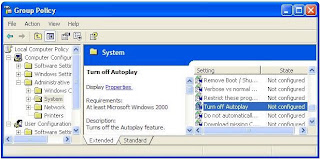
If you find windows that display an autoplay window that always popup and ask you what to do when you insert a USB device or insert a CD or DVD very annoying. Here is a way to simply turn it off.

1. To open your Group Policy window to configure the “Turn off Autoplay” function of your system. To do this Click on start –> Run –> Type “gpedit.msc“.

2. Click on Administrative Templates, and click on “System”.
3. Double click on the item called “Turn off Autoplay”

4. Set the radio or option button to “Enabled” and change the value of “Turn off autoplay on:” to All Drives (see image above).
5. That’s it you disable the autoplay of USB/CD Drives Window on your computer. Hope you find this very useful.

Sunday, July 12, 2009

Google Chrome OS Introduced

Google Chrome OSFirst Google dominates the search engine market. Then Google enters the Web-based e-mail market. And then Google jumps into the browser market with Chrome. There’s no doubt that Google is the king. Google has announced with its plans for a new operating system based on Google Chrome. The new operating system, named Google Chrome OS, will be an open-source operating system initially geared toward netbooks. Google claims the new Google Chrome OS (operating system), which should ship on netbooks starting in the second half of next year, will be "lightweight" and heavily Web-centric. This new Google Chrome OS operating system from the number one search engine company today will possess the same quality that the company was known for, speed, simplicity and security. All of us spend much of our time working inside a browser. We search, chat, email and collaborate in a browser. And in our spare time, we shop, bank, read news and keep in touch with friends -- all using a browser. Because we spend so much time online, Google began seriously thinking about what kind of browser could exist if started from scratch and built on the best elements out there. Google realized that the web had evolved from mainly simple text pages to rich, interactive applications and that we needed to completely rethink the browser. What we really needed was not just a browser, but also a modern platform for web pages and applications, and that's what Google set out to build. The new Google Chrome OS.