
There are multiple ways to message your members through PushPress Core, whether you need to communicate one-on-one or send a mass message. You can choose to contact members via email or SMS, depending on your needs. Additionally, you can use the "Communication Tab" to send mass messages efficiently, as detailed in a separate section.
Email Messages
Sent from: themachine@pushpress.com
Replies go to:
Your business customer service email (as set in your system settings), or
The admin user who sends the message.
SMS Messages
SMS is outbound-only
Members cannot reply to text messages.
How to Message Members and Leads Individually
You can send direct messages to Members and Leads from either the People List or their individual profile pages in PushPress Core.
From the People List:
Navigate to the People List in your dashboard.
Select the checkbox next to the individual’s name.
A “Send Message” button will appear; click it.

In the Send Message Prompt:
Choose Message Type:
Email or SMS
BCC Options:
Select additional recipients to BCC (for email only)
For Email:
Enter a Subject
Write your Message Body
Emails are sent from themachine@pushpress.com, with replies going to your business support email or the admin who sends the message.

For SMS:
• Automatically set as No-reply
• Outbound only (members cannot respond)
• Restricted to 160 characters
From the Member/Lead Profile:
Open the individual’s profile page.
Click on the text or email icons at the top of the profile.

Email box will have you choose the "from" field if you'd like it to come from your profile email or the company email.
SMS/ Text Message - United States & Canada Only

Mass message active Members
Navigate to the People List: Log into your dashboard and go to the People section.
Apply Active Member Filter: Click the filter icon.
Select the “Member” filter and choose “Active”.
This displays only individuals who are on a member plan with an active subscription.- Check the box on the left-hand corner to select all members displayed.

Use the Select Box to choose members, then select 'Send message'
In the Send Message Prompt:
Choose Message Type:
Email or SMS
BCC Options:
Select additional recipients to BCC (for email only)
How to Message Active Members on a Specific Plan
Navigate to the People List: Log into your dashboard and go to the People section.
Apply Active Member Filter: Click the filter icon.
Select the “Plan” filter and choose the specific plan.

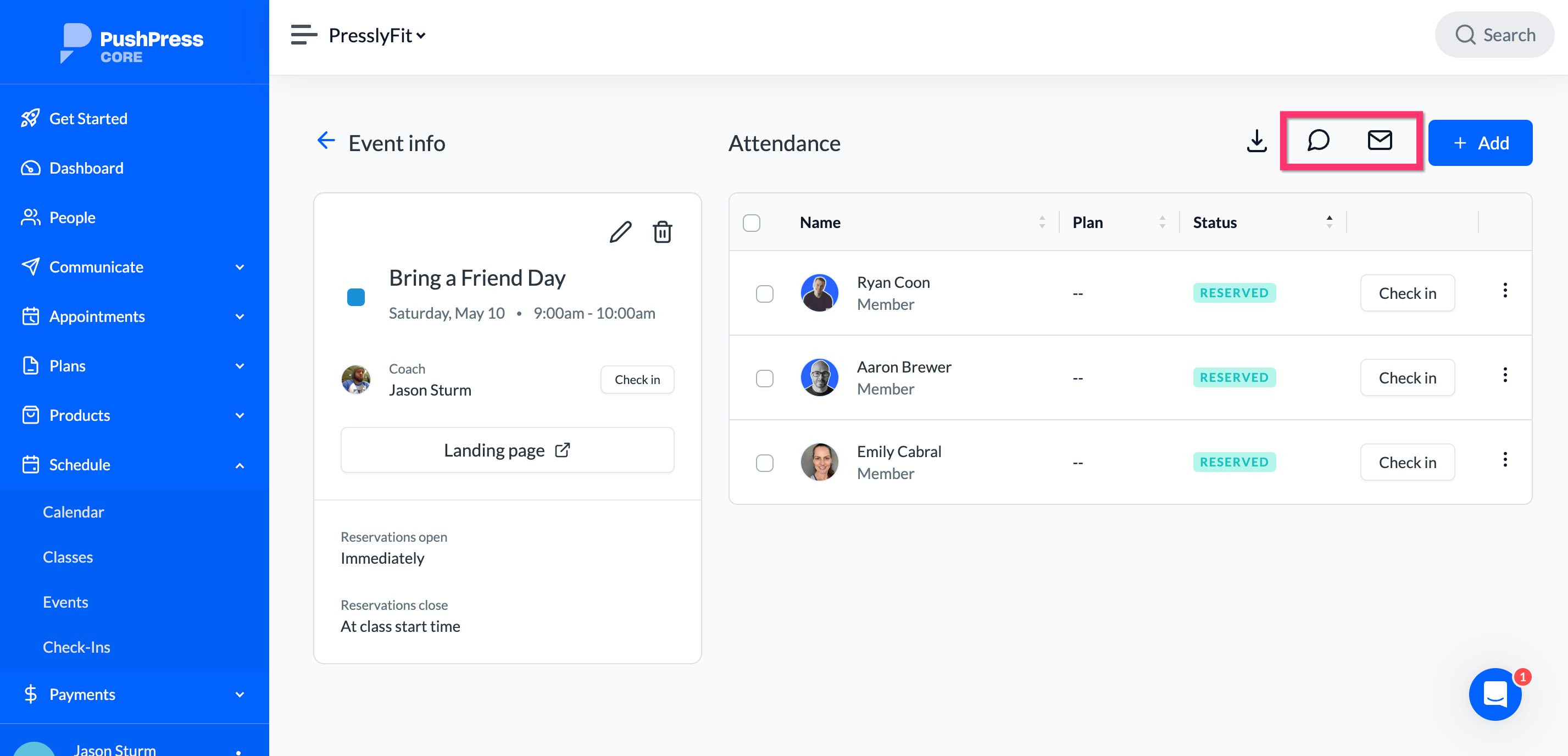
How to Message Event Attendees
Navigate to the Event: Go to Schedule > Events in your Core dashboard.
Open the Event Details: Click the three dots next to the desired event and select “View.”
Send Your Message: Choose to send an SMS or Email to all currently registered attendees.
How to Message Class Attendees
Access the Class Schedule: From your Core dashboard, go to Schedule > Calendar.
Select and View the Class: Click on the class you want to message, then select “View Class.”
Send a Message: Choose to send an SMS or Email to all members currently registered for that class.
Using the Communication Tab
Another efficient way to send emails is through the 'Communication' tab:
Navigate to the 'Communication' tab from the main menu in PushPress Core.
Access the mass email option, allowing you to compose bulk messages directly to all members. This method is ideal for announcements or bulk updates.

Need More Help?
For further assistance:
Check out other Help Articles.
Use the PushPress Messenger
Email us at support@pushpress.com.- Watch our detailed tutorial for a step-by-step guide on emailing: Loom Tutorial Video.
About PushPress
PushPress is a gym management software that can help you a lot in managing your gym. We've helped thousands of local gyms streamline and professionalize their businesses with our intuitive, powerful solution for managing fitness facilities - all from the palm of their hands!