Showing posts with label ASP.NET. Show all posts
0

DropDownList Validation Using JQuery JavaScript In Asp.Net

This post explains DropDownList validation Using Jquery and JavaScript in Asp.Net where DropDown is either bind with SqlDataSource or listItems.

Place one drop down and button on the page in design view and add JQuery javascript file in solution and add it's reference in head section of page. write following JQuery script in head section of page.

   1:  <head runat="server">
   2:  <title></title>
   3:   
   4:  <script src="Scripts/jquery-1.7.2.min.js" type="text/javascript"></script>  
   5:  <script type="text/javascript" language="javascript">
   6:     $(document).ready(function() {
   7:        $('#Button1').on('click', function(e) {
   8:        var selectedText = $('#DropDownList1     option:selected').text().toLowerCase();
   9:         if (selectedText == 'select') 
  10:          {
  11:            alert('Please select any language.');
  12:            e.preventDefault();
  13:          }
  14:          else
  15:                  alert('You selected ' + selectedText);
  16:          })
  17:          
  18:            
  19:   })
  20:      
  21:  </script>
  22:      
  23:  </head>


HTML Source of Drop Down And Button

   1:  <asp:DropDownList ID="DropDownList1" runat="server">
   2:  <asp:ListItem>Select</asp:ListItem>
   3:  <asp:ListItem>C#</asp:ListItem>
   4:  <asp:ListItem>VB</asp:ListItem>
   5:  <asp:ListItem>Java</asp:ListItem>
   6:  <asp:ListItem>C</asp:ListItem>
   7:   </asp:DropDownList>
   8:          
   9:  <asp:Button ID="Button1" runat="server" Text="Button" />


Now if DropDownList is getting populated from DataBase by SqlDataSource then we need to set AppendDataBoundItems property of dropdown to true and add one list item with text Select at 0th index in Page_Load event.

   1:  <asp:DropDownList ID="DropDownList2" runat="server" 
   2:                    AppendDataBoundItems="True" 
   3:                    DataSourceID="SqlDataSource1" 
   4:                    DataTextField="ProductName" 
   5:                    DataValueField="ProductID">
   6:  </asp:DropDownList>
   7:  <asp:SqlDataSource ID="SqlDataSource1" runat="server" 
   8:  ConnectionString="<%$ ConnectionStrings:TestDbConnectionString %>" 
   9:  SelectCommand="SELECT [ProductID], [ProductName] FROM [Products]">
  10:  </asp:SqlDataSource>
  11:      
  12:  <asp:Button ID="Button2" runat="server" Text="Button" />


write following code in code behind.

protected void Page_Load(object sender, EventArgs e)
    {
        DropDownList2.Items.Add(new ListItem("select", "0"));
    }


And write following JQuery code in head section of html source of page.

   1:  <script type="text/javascript" language="javascript">
   2:  $(document).ready(function() {
   3:                 
   4:     $('#Button2').on('click', function(e) {
   5:        var selectedValue = $('#DropDownList2').val();
   6:        if (selectedValue == 0) 
   7:         {
   8:            alert('Please select any product.');
   9:            e.preventDefault();
  10:         }
  11:              else
  12:                 alert('you selected product with ID ' + selectedValue);
  13:          })
  14:      
  15:      })
  16:      
  17:  </script>


If we want to use JavaScript Instead of Jquery then write code in following way

   1:  <script type="text/javascript">
   2:         
   3:   function Validation() {
   4:       var selectedValue =       document.getElementById('<%=DropDownList2.ClientID%>').value;
   5:        if (selectedValue == "0") 
   6:        {
   7:            alert("Please Select Product");
   8:        }
   9:        else {
  10:                  alert("You selected " + selectedValue);
  11:              }
  12:          }
  13:  </script>


Call this function in OnClientClick Event of button

   1:  <asp:Button ID="Button2" runat="server" Text="Button" OnClientClick="Validation()"  />

0

Validate DropDownList Using Required Field Validator Asp.Net

This post explains How to Validate DropDownList Using RequiredFieldValidator In Asp.Net when either Dropdown is populated using SqlDataSource or when Drop Down is populated using List Items.

Place one dropdown list, button and requiredfieldvalidator controls in design view of page and add list items in HTML source of page as mentioned below.

   1:  <asp:DropDownList ID="ddlLanguage" runat="server">
   2:  <asp:ListItem>--Select--</asp:ListItem>
   3:  <asp:ListItem>C#</asp:ListItem>
   4:  <asp:ListItem>VB</asp:ListItem>
   5:  <asp:ListItem>Java</asp:ListItem>
   6:  </asp:DropDownList>


Set ControlToValidate, InitialValue, Error Message properties of required field validator as follows.

   1:  <asp:RequiredFieldValidator ID="rfvDdl" runat="server" 
   2:     ControlToValidate="ddlLanguage" 
   3:     ErrorMessage="Please Select a Language" 
   4:     InitialValue="--Select--" 
   5:     SetFocusOnError="True">
   6:  </asp:RequiredFieldValidator>


If dropdownlist is getting populated by SqlDataSource or ObjectDataSource at runtime then we need to set AppendDataBoundItems property of dropdown to true and add one list item at 0 or -1 index in Page_Load event of page.

   1:  <asp:DropDownList ID="ddlProducts" runat="server" 
   2:          AppendDataBoundItems="True" 
   3:          DataSourceID="SqlDataSource1" 
   4:          DataTextField="ProductName" 
   5:          DataValueField="ProductID">
   6:  </asp:DropDownList>
   7:   
   8:  <asp:SqlDataSource ID="SqlDataSource1" runat="server" 
   9:          ConnectionString="<%$ ConnectionStrings:TestDbConnectionString %>" 
  10:          SelectCommand="SELECT [ProductName], [ProductID] FROM [Products]">
  11:  </asp:SqlDataSource>
  12:   
  13:  <asp:RequiredFieldValidator ID="RequiredFieldValidator1" runat="server" 
  14:          ControlToValidate="ddlProducts" 
  15:          ErrorMessage="Please select a product" 
  16:          InitialValue="0" SetFocusOnError="True">
  17:  </asp:RequiredFieldValidator>


Write following code in Page_Load Event in code behind.

protected void Page_Load(object sender, EventArgs e)
    {
        ddlProducts.Items.Insert(0,new ListItem("Choose Product","0"));
    }


Build and run the code.

0

ASP.NET TextBox Remaining Character Counter JavaScript

This example illustrate how to count and show remaining characters in TextBox using JavaScript in Asp.Net.
Create a new website in Visual Studio and place one TextBox and Label on the default.aspx page in design mode.

Go to HTML source of page and write a JavaScript function named Count in head section of page to count remaining characters in TextBox.

Set the MaxLength property of TextBox to 10 chars.


   1:  <head runat="server">
   2:  <title>Remaining Characters Counter</title>
   3:  <script type="text/javascript">
   4:  function Count() {
   5:   
   6:  var i = document.getElementById("TextBox1").value.length;
   7:  document.getElementById("Label1").innerHTML = 10 - i;
   8:          }
   9:  </script>
  10:  </head>

Call this javascript function in onkeyup event of textbox.
   1:  <asp:TextBox ID="TextBox1" runat="server" 
   2:          MaxLength="10" onkeyup="Count()">
   3:  </asp:TextBox>


1

Asp.Net Bind Populate DropDownList With JQuery And XML

In this example i'm explaining How To Populate Or Bind DropDownList With JQuery And XML In Asp.Net.
bind populate dropdownlist with jquery and xml

Add jquery library reference in head section and place one dropdown on the page.

Add one list item with select as it's value.

   1:  <asp:DropDownList ID="DropDownList1" runat="server">
   2:  <asp:ListItem>Select</asp:ListItem>
   3:  </asp:DropDownList>
   4:   
   5:  <asp:Label ID="Label1" runat="server" Text=""/>


Following is the Cities.xml file i'm using to bind dropdownlist using jquery.


    Mumbai
    1
  
    
    Delhi
      2
  
  
    Banglore
    3
  
  
    Chennai
    4
  

Add this script in head section of page.


Build and run the code.

0

AjaxFileUpload AsyncFileUpload In ModalPopUp Extender Asp.Net

This example shows how to use AjaxFileUpload Control Or AsyncFileUpload In ModalPopUp Extender Using C# VB Asp.Net.

Place ToolkitScriptManager and a button inside UpdatePanel on the page, we will open ModalPopup in click event of this button to upload files.

Create one panel on the page and add AjaxFileUpload or Ajax AsyncFileUpload in it.

Async Ajax FileUpload In ModalPopUp Extender


HTML Source
<asp:ToolkitScriptManager ID="ToolkitScriptManager1" runat="server"/>
<asp:UpdatePanel ID="UpdatePanel1" runat="server">
<ContentTemplate>
<asp:Button ID="btnUpload" runat="server" 
            Text="Upload File" onclick="btnUpload_Click"/>
            
<asp:ModalPopupExtender runat="server" 
                        ID="modelPopupExtender1" 
                        TargetControlID="btnUpload"
                        PopupControlID="popUpPanel" 
                        OkControlID="btOK" 
                        BackgroundCssClass="modalBackground">
</asp:ModalPopupExtender>
 
 <asp:Panel ID="popUpPanel" runat="server" CssClass="pnl">
 <div style="font-weight: bold; border: Solid 3px Aqua; 
                                background-color: AliceBlue">
 
 <asp:AjaxFileUpload ID="AjaxFileUpload1" runat="server" 
                     OnUploadComplete="UploadComplete" 
                     OnClientUploadComplete="Success" 
                     ThrobberID="loader" Width="400px"/>
 <asp:Image ID="loader" runat="server" 
            ImageUrl ="~/loading.gif" 
            Style="display:None"/>
 </div><br /><br />
 <asp:Label ID="lblMessage" runat="server"/><br /><br />
 <asp:Button ID="btOK" runat="server" Text="OK" />
 <asp:LinkButton ID="LinkButton1" runat="server" CssClass="close" 
 OnClientClick="$find('modelPopupExtender1').hide(); return false;"/>
</asp:Panel>
</ContentTemplate>
</asp:UpdatePanel>


If you are using AsyncFileUpload Control then don't forget to set UploaderStyle property to Traditional, other wise it will throw invalid argument error.

<ajax:AsyncFileUpload ID="AsyncFileUpload1" runat="server" 
                      UploadingBackColor="Blue" 
                      CompleteBackColor="WhiteSmoke"
                      OnUploadedComplete="SaveUploadedFile" 
                      OnClientUploadComplete="Success" 
                      OnClientUploadError="Error"
                      UploaderStyle="Traditional"/>


Add following Javascript and CSS in head section of page.


Write following code in OnUploadComplete event to save file on server.

protected void UploadComplete(object sender, AjaxControlToolkit.AjaxFileUploadEventArgs e)
    {
        string path = Server.MapPath("~/Uploads/") + e.FileName;
        AjaxFileUpload1.SaveAs(path);
    }


Build and run the code.

Download Sample Code


4

Ajax AutoCompleteExtender In Master Page Asp.Net

This Example shows How To Use Ajax AutoCompleteExtender TextBox In Master Page In Asp.Net.

Open Visual Studio and create new website, add master page in it and design it as you want.

Create a BIN folder in application and add AjaxControlToolkit.dll in it.

I have use Northwind database to fetch names for AutoCompletion list.

Add Connection String in web.config file

<connectionStrings>
<add name="NorthwindConnectionString" 
     connectionString="Data Source=AMITJAIN\SQL;
                       Initial Catalog=Northwind;
                       User ID=amit;Password=password"
providerName="System.Data.SqlClient"/>
</connectionStrings>


Place ToolkitScriptManager on Master Page inside form tag, one textbox and Add Ajax AutoComplete Extender from Toolbox.

HTML SOURCE OF MASTER PAGE
<%@ Master Language="C#" AutoEventWireup="true" CodeFile="MasterPage.master.cs" Inherits="MasterPage" %>
<%@ Register Assembly="AjaxControlToolkit" Namespace="AjaxControlToolkit" TagPrefix="asp" %>
<!DOCTYPE html PUBLIC "-//W3C//DTD XHTML 1.0 Transitional//EN" "http://www.w3.org/TR/xhtml1/DTD/xhtml1-transitional.dtd">
 
<html xmlns="http://www.w3.org/1999/xhtml">
<head runat="server">
<title></title>
<asp:ContentPlaceHolder id="head" runat="server">
</asp:ContentPlaceHolder>
</head>
<body>
<form id="form1" runat="server">
<asp:ToolkitScriptManager ID="ToolkitScriptManager1" runat="server"/>
 
<asp:TextBox ID="txtAutoComplete" runat="server"/>
                               
<asp:AutoCompleteExtender ID="AutoCompleteExtender1" 
                          runat="server" 
                          DelimiterCharacters="" 
                          Enabled="True" 
                          ServicePath="~/AutoComplete.asmx" 
                          ServiceMethod="GetCompletionList"
                          TargetControlID="txtAutoComplete"
                          MinimumPrefixLength="1" 
                          CompletionInterval="10" 
                          EnableCaching="true"
                          CompletionSetCount="12">
</asp:AutoCompleteExtender>
                
<asp:ContentPlaceHolder id="ContentPlaceHolder1" runat="server">
</asp:ContentPlaceHolder>
 
</form>
</body>
</html>


We can set CompletionList WIdth and styles using CSS or use AutoCompleteExtender In GridView or Windows Forms Application.

Add new webservice, name it AutoComplete.asmx and write following code in it's code behind.

C#
using System.Collections.Generic;
using System.Web.Services;
using System.Data.SqlClient;
using System.Data;
using System.Configuration;

[WebService(Namespace = "http://tempuri.org/")]
[WebServiceBinding(ConformsTo = WsiProfiles.BasicProfile1_1)]
[System.Web.Script.Services.ScriptService]
public class AutoComplete : System.Web.Services.WebService {

    public AutoComplete () 
    {
    }

    [WebMethod]
    public string[] GetCompletionList(string prefixText, int count)
    {
        if (count == 0)
        {
            count = 10;
        }
        DataTable dt = GetRecords(prefixText);
        List items = new List(count);

        for (int i = 0; i < dt.Rows.Count; i++)
        {
            string strName = dt.Rows[i][0].ToString();
            items.Add(strName);
        }
        return items.ToArray();
    }

    public DataTable GetRecords(string strName)
    {
        string strConn = ConfigurationManager.ConnectionStrings["NorthwindConnectionString"].ConnectionString;
        SqlConnection con = new SqlConnection(strConn);
        SqlCommand cmd = new SqlCommand();
        cmd.Connection = con;
        cmd.CommandType = System.Data.CommandType.Text;
        cmd.Parameters.AddWithValue("@Name", strName);
        cmd.CommandText = "Select FirstName from Employees where FirstName like '%'+@Name+'%'";
        DataSet objDs = new DataSet();
        SqlDataAdapter dAdapter = new SqlDataAdapter();
        dAdapter.SelectCommand = cmd;
        con.Open();
        dAdapter.Fill(objDs);
        con.Close();
        return objDs.Tables[0];
    }
}

VB.NET
Imports System.Collections.Generic
Imports System.Web.Services
Imports System.Data.SqlClient
Imports System.Data
Imports System.Configuration

 _
 _
 _
Public Class AutoComplete
 Inherits System.Web.Services.WebService

 Public Sub New()
 End Sub

  _
 Public Function GetCompletionList(prefixText As String, count As Integer) As String()
  If count = 0 Then
   count = 10
  End If
  Dim dt As DataTable = GetRecords(prefixText)
  Dim items As New List(Of String)(count)

  For i As Integer = 0 To dt.Rows.Count - 1
   Dim strName As String = dt.Rows(i)(0).ToString()
   items.Add(strName)
  Next
  Return items.ToArray()
 End Function

 Public Function GetRecords(strName As String) As DataTable
  Dim strConn As String = ConfigurationManager.ConnectionStrings("NorthwindConnectionString").ConnectionString
  Dim con As New SqlConnection(strConn)
  Dim cmd As New SqlCommand()
  cmd.Connection = con
  cmd.CommandType = System.Data.CommandType.Text
  cmd.Parameters.AddWithValue("@Name", strName)
  cmd.CommandText = "Select FirstName from Employees where FirstName like '%'+@Name+'%'"
  Dim objDs As New DataSet()
  Dim dAdapter As New SqlDataAdapter()
  dAdapter.SelectCommand = cmd
  con.Open()
  dAdapter.Fill(objDs)
  con.Close()
  Return objDs.Tables(0)
 End Function
End Class


Build and run the application.

1

Validation Of ViewState MAC Failed Error Asp.Net

If you are receiving Validation Of ViewState MAC Failed Error In Asp.Net web application.

This occurs if you are using controls like Gridview or Detailsview with DataKeyNames on the page and page takes long time in loading.

This issue has been fixed in .Net framework 2.0 SP2 and .Net framework 3.5 SP1. so upgrading to service packs is best option to fix validation of viewstate mac failed error.

Other workarounds can be

1. Set enableEventValidation to false and viewStateEncryptionMode to Never in web.config.
   1:  <pages enableeventvalidation="false" 
   2:         viewstateencryptionmode="Never">


7

Asp.Net AjaxFileUpload Control With Drag Drop And Progress Bar

This Example explains how to use AjaxFileUpload Control With Drag Drop And Progress Bar Functionality In Asp.Net 2.0 3.5 4.0 C# And VB.NET.

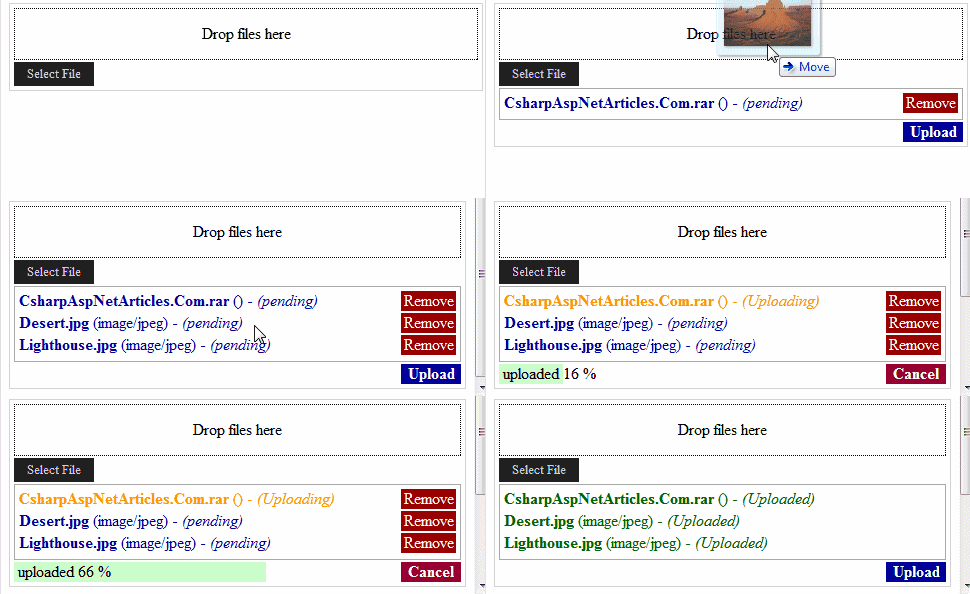
May 2012 release of AjaxControlToolkit includes a new AjaxFileUpload Control which supports Multiple File Upload, Progress Bar and Drag And Drop functionality.

These new features are supported by Google Chrome version 16+, Firefox 8+ , Safari 5+ and Internet explorer 10 + , IE9 or earlier does not support this feature.

AjaxFileUpload Control Example with Drag Drop And Progress Bar

To start with it, download and put latest AjaxControlToolkit.dll in Bin folder of application, Place ToolkitScriptManager and AjaxFileUpload on the page.

HTML SOURCE
<asp:ToolkitScriptManager ID="ToolkitScriptManager1" runat="server"/>
          
<asp:AjaxFileUpload ID="AjaxFileUpload1" runat="server" 
                    OnUploadComplete="UploadComplete" 
                    ThrobberID="loader"/>
 
<asp:Image ID="loader" runat="server" 
           ImageUrl ="~/loading.gif" Style="display:None"/>


ThrobberID is used to display loading image instead of progress bar in unsupported browsers.

Type of files uploaded can be restricted by using AllowedFileTypes property with comma separated list such as "zip,doc,pdf".

Write following code in OnUploadComplete event to save the file.

C#
protected void UploadComplete(object sender, AjaxControlToolkit.AjaxFileUploadEventArgs e)
    {
        string path = Server.MapPath("~/Uploads/") + e.FileName;
        AjaxFileUpload1.SaveAs(path);
    }
VB.NET
protected void UploadComplete(object sender, AjaxControlToolkit.AjaxFileUploadEventArgs e)
    {
        string path = Server.MapPath("~/Uploads/") + e.FileName;
        AjaxFileUpload1.SaveAs(path);
    }
Build and run the code.

Download Sample Code


0

Ajax ConfirmButtonExtender With ModalPopUp In GridView Asp.Net

This example implements Ajax ConfirmButtonExtender With ModalPopUp Extender In Asp.Net GridView to show Delete Confirmation before deleting records.

Populate GridView using SqlDataSource and add one LinkButton inside TemplateField in Columns.

   1:  <asp:TemplateField HeaderText="Delete">
   2:  <ItemTemplate>
   3:  <asp:LinkButton ID="lnkDel" runat="server" 
   4:                  CommandName="Delete" Text="Delete"/>


Place ToolkitScriptManager and UpdatePanel on the page and add ConfirmButton, ModalPopUpExtender and Panel to pop inside Template field we added earlier.

HTML SOURCE
<div>
<asp:ToolkitScriptManager ID="ToolkitScriptManager1" runat="server"/>
<asp:UpdatePanel ID="UpdatePanel1" runat="server">
<ContentTemplate>
        
<asp:GridView ID="GridView1" runat="server" 
              AutoGenerateColumns="False" 
              DataKeyNames="ProductID" 
              DataSourceID="SqlDataSource1"
              onrowdeleted="GridView1_RowDeleted">
<Columns>
<asp:TemplateField HeaderText="Delete">
<ItemTemplate>
<asp:LinkButton ID="lnkDel" runat="server" 
                CommandName="Delete" Text="Delete"/>
                
<asp:ConfirmButtonExtender ID="ConfirmButtonExtender1" 
                           runat="server" 
                           TargetControlID="lnkDel"
                           DisplayModalPopupID="ModalPopupExtender1"/>
                                        
<asp:ModalPopupExtender ID="ModalPopupExtender1" 
                        runat="server"
                        TargetControlID="lnkDel"
                        PopupControlID="pnlModal"
                        BackgroundCssClass="Background"
                        OkControlID="btnYes"
                        CancelControlID="btnNo"
                        X="80"
                        Y="80"/>
 
<asp:Panel runat="Server" ID="pnlModal" CssClass="Pnl">
<br />         
Do you want to delete this record
<br /><br />
<asp:Button ID="btnYes" runat="server" Text="Yes"/>
<asp:Button ID="btnNo" runat="server" Text="No"/>
</asp:Panel>
</ItemTemplate>
</asp:TemplateField>
 
<asp:BoundField DataField="ProductID" HeaderText="ProductID"/>
<asp:BoundField DataField="ProductName" HeaderText="ProductName"/> 
<asp:BoundField DataField="UnitPrice" HeaderText="UnitPrice"/> 
<asp:BoundField DataField="UnitsInStock" HeaderText="UnitsInStock"/> 
</Columns>
</asp:GridView>
 
<asp:Label ID="lblMessage" runat="server" Text=""/>
</ContentTemplate>
</asp:UpdatePanel>
 
<asp:SqlDataSource ID="SqlDataSource1" runat="server" 
ConnectionString="<%$ ConnectionStrings:NorthwindConnectionString %>" 
DeleteCommand="DELETE FROM [Products] 
               WHERE [ProductID] = @ProductID" 
SelectCommand="SELECT [ProductID], [ProductName], 
              [UnitPrice], [UnitsInStock] FROM [Products]" 
        
<DeleteParameters>
<asp:Parameter Name="ProductID" Type="Int32" />
</DeleteParameters>
</asp:SqlDataSource>
</div>


Add following CSS style in Head section of the page.
  

Build and run the code

AJax ConfirmButtonExtender With ModalPopUp In GridView Asp.Net

Download Sample Code


1

Populate Bind DropDownList From XML File In Asp.Net

This Example explains how to Populate Or Bind DropDownList With XML File Data In Asp.Net In 3/n Tier Architecture Using C# And VB.

Populate Bind DropDownList From XML File
Place one DropdownList on the page.

<asp:DropDownList ID="DropDownList1" 
                  runat="server" 
                  onselectedindexchanged
  ="DropDownList1_SelectedIndexChanged">


XML Data Can be in various formats, i'll use 3 different ones shown below.


Sample 1.
   1:  <?xml version="1.0" encoding="utf-8" ?>
   2:  <Employees>
   3:    <Detail>
   4:      <ID>1</ID>
   5:      <Name>Csharp</Name>
   6:    </Detail>
   7:    <Detail>
   8:      <ID>2</ID>
   9:      <Name>AspNet</Name>
  10:    </Detail>
  11:    <Detail>
  12:      <ID>3</ID>
  13:      <Name>Articles</Name>
  14:    </Detail>
  15:  </Employees>

Another format can be
   1:  <?xml version="1.0" encoding="utf-8" ?>
   2:  <Employees>
   3:    <Detail ID="1" Name="Csharp"></Detail>
   4:    <Detail ID="2" Name="AspNet"></Detail>
   5:    <Detail ID="3" Name="Articles"></Detail>
   6:  </Employees>

Writing following code in Page_Load event is enough to bind dropdownlist from these types of XML data.

C#
using System.Data;
using System.Xml;
protected void Page_Load(object sender, EventArgs e)
{
        DataSet dsXml = new DataSet();
        dsXml.ReadXml(Server.MapPath("~/XMLFile2.xml"));
        DropDownList1.DataSource = dsXml;
        DropDownList1.DataTextField = "Name";
        DropDownList1.DataValueField = "ID";
        DropDownList1.DataBind();
        DropDownList1.AutoPostBack = true;
}

VB.NET
Protected Sub Page_Load(sender As Object, e As EventArgs)
 Dim dsXml As New DataSet()
 dsXml.ReadXml(Server.MapPath("~/XMLFile2.xml"))
 DropDownList1.DataSource = dsXml
 DropDownList1.DataTextField = "Name"
 DropDownList1.DataValueField = "ID"
 DropDownList1.DataBind()
 DropDownList1.AutoPostBack = True
End Sub


If XML format is mix of above two.
   1:  <?xml version="1.0" encoding="utf-8" ?>
   2:  <Details>
   3:    <Name ID="1">Amit</Name>
   4:    <Name ID="2">Jain</Name>
   5:    <Name ID="3">Csharp</Name>
   6:    <Name ID="4">AspNet</Name>
   7:    <Name ID="5">Articles</Name>
   8:  </Details>

We need to loop through nodes to fine value of ID attribute.

C#
protected void Page_Load(object sender, EventArgs e)
    {
        if (!IsPostBack)
        {
            XmlDocument doc = new XmlDocument();
            doc.Load(Server.MapPath("~/XMLFile.xml"));
            XmlNodeList list = doc.GetElementsByTagName("Name");
            foreach (XmlNode node in list)
            {
                ListItem lItem = new ListItem(node.InnerText, node.Attributes["ID"].Value);
                DropDownList1.Items.Add(lItem);
            }
            DropDownList1.Items.Insert(0, "--Select--");
            DropDownList1.SelectedIndex = 0;
            DropDownList1.AutoPostBack = true;
        }
    }

VB
Protected Sub Page_Load(sender As Object, e As EventArgs)
 If Not IsPostBack Then
  Dim doc As New XmlDocument()
  doc.Load(Server.MapPath("~/XMLFile.xml"))
  Dim list As XmlNodeList = doc.GetElementsByTagName("Name")
  For Each node As XmlNode In list
   Dim lItem As New ListItem(node.InnerText, node.Attributes("ID").Value)
   DropDownList1.Items.Add(lItem)
  Next
  DropDownList1.Items.Insert(0, "--Select--")
  DropDownList1.SelectedIndex = 0
  DropDownList1.AutoPostBack = True
 End If
End Sub


To Bind DropDownList in 3 tier architecture environment, add to new class files in App_Code folder of application and name them DataLayer.cs and BusinessLayer.cs

Write Following code in these class respectively.

Data Access Layer (DAL)
using System.Web;
using System.Xml;
public class DataLayer
{
 public DataLayer()
 {
 }
    public XmlDocument GetXmlData()
    {
        XmlDocument doc = new XmlDocument();
        doc.Load(HttpContext.Current.Server.MapPath("~/XMLFile.xml"));
        return doc;
    }
}

Business Access Layer (BAL)
using System.Web.UI.WebControls;
using System.Xml;
public class BusinessLayer
{
 public BusinessLayer()
 {
    }
    public ListItemCollection BindDropDownList()
    {
        ListItemCollection ddlItems = new ListItemCollection();
        DataLayer objDAL = new DataLayer();
        XmlNodeList list = objDAL.GetXmlData().GetElementsByTagName("Name");
        foreach (XmlNode node in list)
        {
           ListItem item = new ListItem(node.InnerText, node.Attributes["ID"].Value);
           ddlItems.Add(item);
            
        }
        return ddlItems;
    }
}

Write code in Page_Load event of aspx page (Presentation Layer)
protected void Page_Load(object sender, EventArgs e)
    {
        if (!IsPostBack)
        {
            BusinessLayer objBAL = new BusinessLayer();
            DropDownList1.DataSource = objBAL.BindDropDownList();
            DropDownList1.DataBind();
            DropDownList1.Items.Insert(0, "--Select--");
            DropDownList1.SelectedIndex = 0;
            DropDownList1.AutoPostBack = true;
        }
    }


2

Auto Refresh Update GridView In Asp.Net Ajax With Timer

This Example describes How To Auto Refresh Or Update GridView Automatically At Regular Interval In Asp.Net Using Ajax And Timer.

Add GridView And Timer control inside UpdatePanel on the page and set Interval property to desired value in miliseconds. I have set it to 5000 (5 Seconds).

HTML SOURCE
   1:  <asp:ScriptManager ID="ScriptManager1" runat="server"/>
   2:  <asp:UpdatePanel ID="UpdatePanel1" runat="server">
   3:  <ContentTemplate>
   4:   
   5:  <asp:Timer ID="AutoRefreshTimer" runat="server" 
   6:             Interval="5000" 
   7:             ontick="AutoRefreshTimer_Tick"/>
   8:                              
   9:  <asp:GridView ID="GridView1" runat="server" 
  10:                AutoGenerateColumns="False" 
  11:                DataSourceID="SqlDataSource1">
  12:  <Columns>
  13:  <asp:BoundField DataField="FirstName" HeaderText="FirstName"/>
  14:  <asp:BoundField DataField="LastName" HeaderText="LastName"/>
  15:  <asp:BoundField DataField="Location" HeaderText="Location"/>
  16:  </Columns>
  17:  </asp:GridView>
  18:   
  19:  <asp:SqlDataSource ID="SqlDataSource1" runat="server" 
  20:  ConnectionString="<%$ ConnectionStrings:ConnectionString %>" 
  21:  SelectCommand="SELECT [FirstName], [LastName], [Location] 
  22:                 FROM [Details]">
  23:  </asp:SqlDataSource>
  24:   
  25:  <asp:Label ID="lblMsg" runat="server"/>
  26:  </ContentTemplate>
  27:  </asp:UpdatePanel>


Rebind GridView In Tick Event of Timer to refresh.

C#
protected void AutoRefreshTimer_Tick(object sender, EventArgs e)
    {
        GridView1.DataBind();
        lblMsg.Text = "Last Updated at " + DateTime.Now;
    }


Image below shows the implementation.

Automatically Refresh Update Asp.Net GridView with Ajax Timer

Hope this helps.

0

Select GridView Row Without Postback OnClick Of Cell JavaScript

This Example explains how to Select GridView Row On Click Of Cell Programmatically Without Postback Using JavaScript In Asp.Net.

We can make cells clickable by adding OnClick attribute in ClientScript.

Place ScriptManager And UpdatePanel on the page and add Gridview inside ContentTemaplate for partial postbacks, Populate it using SqlDataSource.


HTML SOURCE OF GRIDVIEW
   1:  <asp:ScriptManager ID="ScriptManager1" runat="server"/>
   2:  <asp:UpdatePanel ID="UpdatePanel1" runat="server">
   3:  <ContentTemplate>
   4:   
   5:  <asp:GridView ID="GridView1" runat="server" 
   6:                AutoGenerateColumns="False" 
   7:                DataKeyNames="EmployeeID" 
   8:                DataSourceID="SqlDataSource1" 
   9:                onrowdatabound="GridView1_RowDataBound" 
  10:                AllowPaging="True"    
  11:                onpageindexchanging="GridView1_PageIndexChanging">
  12:  <Columns>
  13:  <asp:BoundField DataField="EmployeeID" HeaderText="EmployeeID"/>
  14:  <asp:BoundField DataField="FirstName" HeaderText="FirstName"/>
  15:  <asp:BoundField DataField="City" HeaderText="City"/>
  16:  <asp:BoundField DataField="Country" HeaderText="Country"/>
  17:  </Columns>
  18:  </asp:GridView>
  19:   
  20:  <asp:SqlDataSource ID="SqlDataSource1" runat="server" 
  21:  ConnectionString="<%$ ConnectionStrings:ConnectionString %>" 
  22:  SelectCommand="SELECT [EmployeeID], [FirstName], [City], 
  23:                [Country] FROM [Employees]">
  24:  </asp:SqlDataSource>
  25:  </ContentTemplate>
  26:  </asp:UpdatePanel>

Write code mentioned below in RowDataBound Event.

C#
protected void GridView1_RowDataBound(object sender, GridViewRowEventArgs e)
    {
        if (e.Row.RowType == DataControlRowType.DataRow)
        {
            e.Row.Attributes["onmouseover"] = "this.style.cursor='hand';";
            e.Row.Attributes["onmouseout"] = "this.style.textDecoration='none';";

            e.Row.Attributes["onclick"] = ClientScript.GetPostBackClientHyperlink(this.GridView1, "Select$" + e.Row.RowIndex);
        }
    }

protected void GridView1_PageIndexChanging(object sender, GridViewPageEventArgs e)
    {
        GridView1.SelectedIndex = -1;
    }

VB.NET
Protected Sub GridView1_RowDataBound(sender As Object, e As GridViewRowEventArgs)
 If e.Row.RowType = DataControlRowType.DataRow Then
  e.Row.Attributes("onmouseover") = "this.style.cursor='hand';"
  e.Row.Attributes("onmouseout") = "this.style.textDecoration='none';"

  e.Row.Attributes("onclick") = ClientScript.GetPostBackClientHyperlink(Me.GridView1, "Select$" & Convert.ToString(e.Row.RowIndex))
 End If
End Sub

Protected Sub GridView1_PageIndexChanging(sender As Object, e As GridViewPageEventArgs)
 GridView1.SelectedIndex = -1
End Sub

While running this code we get EventValidation error.

Invalid postback or callback argument. Event validation is enabled using in configuration or <%@ Page EnableEventValidation="true" %> in a page. For security purposes, this feature verifies that arguments to postback or callback events originate from the server control that originally rendered them. If the data is valid and expected, use the ClientScriptManager.RegisterForEventValidation method in order to register the postback or callback data for validation.

We can fix this by setting EnableEventValidation="false" in page directive but it will be a security risk, so there are other ways to handle this.

Method 1.
Add this style in head section of page
   1:  <style>
   2:  .visibility {Display : none}
   3:  </style>

Now add ShowSelectButton Commandfield column in gridview source and set it's css property to style we added in head. this will hide the select button.
   1:  <asp:CommandField ShowSelectButton="True" 
   2:                    ItemStyle-CssClass="visibility"/>


Method 2.
Remove the code from RowDataBound Event of GridView and OverRide Render event of page, set the last parameter (bool registerForEventValidation) of ClientScript to true.

C#
protected override void Render(System.Web.UI.HtmlTextWriter textWriter)
    {
        foreach (GridViewRow gvRow in GridView1.Rows)
        {
            if (gvRow.RowType == DataControlRowType.DataRow)
            {
                gvRow.Attributes["onmouseover"] =
                   "this.style.cursor='hand';";
                gvRow.Attributes["onmouseout"] =
                   "this.style.textDecoration='none';";
                gvRow.Attributes["onclick"] =
                 ClientScript.GetPostBackClientHyperlink(GridView1, "Select$" + gvRow.RowIndex, true);
            }
        }
        base.Render(textWriter);
    }

VB
Protected Overrides Sub Render(textWriter As System.Web.UI.HtmlTextWriter)
 For Each gvRow As GridViewRow In GridView1.Rows
  If gvRow.RowType = DataControlRowType.DataRow Then
   gvRow.Attributes("onmouseover") = "this.style.cursor='hand';"
   gvRow.Attributes("onmouseout") = "this.style.textDecoration='none';"
   gvRow.Attributes("onclick") = ClientScript.GetPostBackClientHyperlink(GridView1, "Select$" + gvRow.RowIndex, True)
  End If
 Next
 MyBase.Render(textWriter)
End Sub

Select GridView Row On Cell Click

Hope this helps.

Find More Articles